
Introduction
In this tutorial, we will guide you through the process of installing Pydio Cells, a file-sharing and synchronization platform, behind a reverse proxy on an Ubuntu server using Docker. By following these steps, you will be able to set up Pydio Cells, connect it to a SQL database, and configure a proxy for secure access. Let’s get started!
Prerequisites:
Before we begin, make sure you have the following prerequisites in place:
– Latest version of Ubuntu installed on your server
– Docker and Portainer installed (For help with installation, refer to this video.)
Logging into Portainer
1. Open Portainer and log in to your local environment.
2. Navigate to “Stacks” on the left sidebar and click on “ADD stack.”
3. Give the stack a name, such as “Proxy Manager.”
Installing the Nginx Proxy Manager
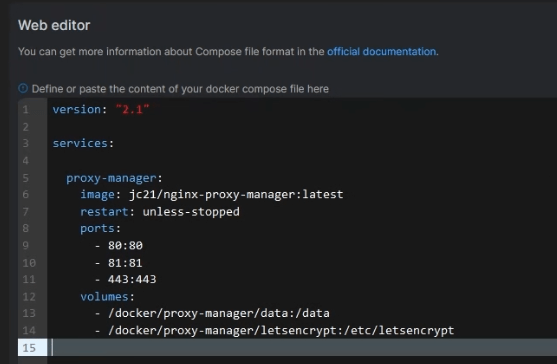
1. Use the below Docker Compose config for the Proxy Manager.
2. Paste the config into a word processor and use the replace feature to replace the placeholder text “/REPLACEME/” with the path where you will store your containers.
3. Copy the modified config and paste it into the web editor in Portainer.
4. Click on “Deploy the stack” to install the Proxy Manager.
Installing Pydio Cells and the SQL Database
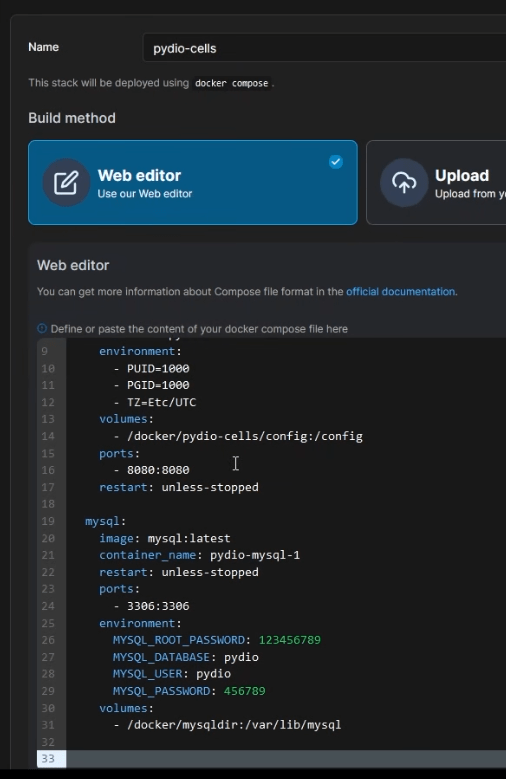
1. Copy the Docker Compose config for Pydio Cells and the database into a text editor.
2. Replace the placeholder text in the config with the appropriate values, such as the root SQL password and the database password.
3. Copy the modified config and paste it into the web editor in Portainer.
4. Click on “Deploy the stack” to install Pydio Cells and the SQL database.
Verifying Container Installation
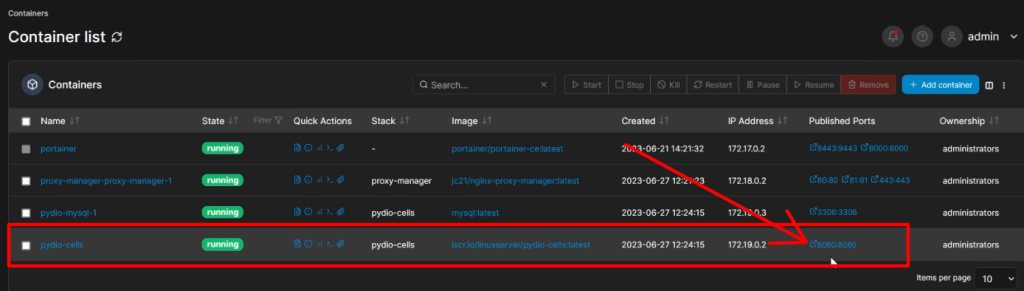
1. Go to the “Containers” section in Portainer and check if all the containers are running.
2. Click on the port for Pydio Cells (usually 8080) to access the Pydio Cells container through your web browser. Note that HTTPS is required for access.
Configuring Pydio Cells
1. Accept any security risk warnings and proceed to the login screen.
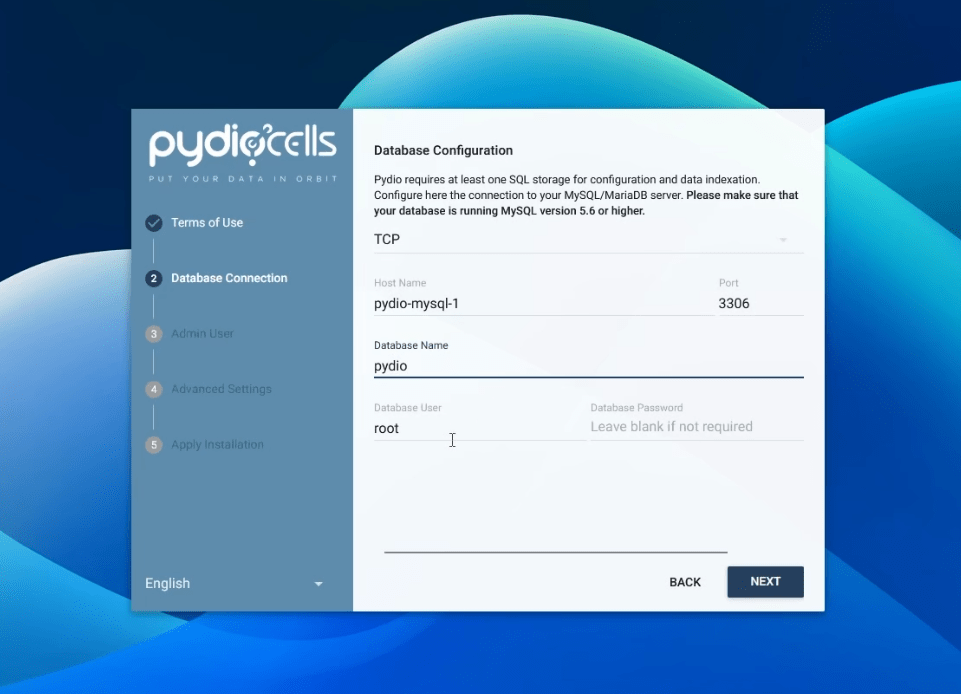
2. Agree to the Terms of Service.
3. Enter the database hostname, database name, username and password.
4. Setup the admin credentials for Pydio Cells.
5. Click install now.
Setting Up the Proxy
1. Navigate back to Portainer and go to the “Networks” section.
2. Locate the Proxy Manager Network and ensure that both the Proxy Manager and Pydio Cells containers are on the same network.
3. Open the admin port for the Proxy Manager (port 81) in Portainer and log in using the default login credentials. ([email protected], changeme)
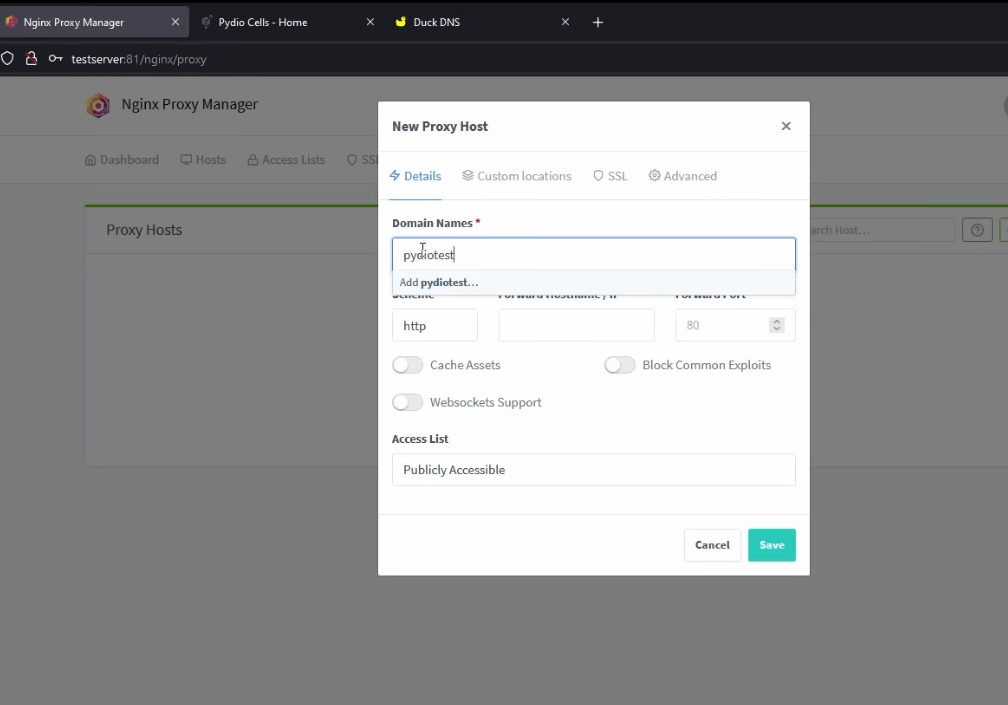
4. Update your credentials and proceed to the “Host Proxy Host” section and add a proxy host.
5. Use a service like Duck DNS to create a forwarding DNS for your domain name.
6. Head back to the Proxy Manager and configure the domain name for Pydio Cells, enabling the necessary options.
7. Save the configuration.
Configuring SSL (Optional)
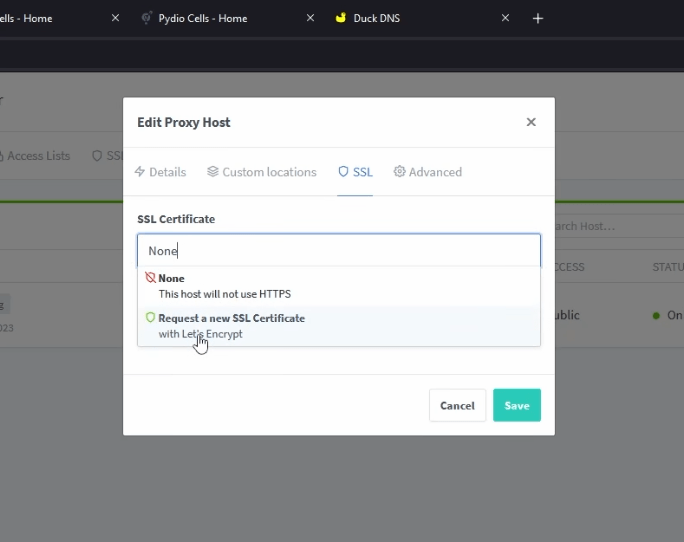
1. If you want to enable SSL for your domain name, click on the three dots next to the domain name in the Proxy Manager.
2. Go to “Edit SSL” and select “Request a new SSL certificate.”
3. Agree to the terms of service and save the configuration.
4. Your Let’s Encrypt SSL certificate should now be accepted.
5. Verify the secure connection by accessing the domain name.
Conclusion
Congratulations! You have successfully installed Pydio Cells behind a reverse proxy on an Ubuntu server using Docker. By following these steps, you can securely access Pydio Cells and enjoy its file-sharing and synchronization features. If you have any questions or comments, feel free to visit my YouTube channel where I have a video walkthrough.
Lorem ipsum dolor sit amet, consectetur adipiscing elit. Ut elit tellus, luctus nec ullamcorper mattis, pulvinar dapibus leo.